
Migrating to Tripomatic 26
This guide explains how your data is transferred from the previous version of Tripomatic to Tripomatic 26.
What Gets Transferred
When you first sign in to Tripomatic 26, the following data is transferred:
- Trips - All your trips, including itineraries, activities, notes, and accommodations
- Favorites - Your saved places that appear highlighted on the map
- User settings - Your preferences and profile information
What Does NOT Get Transferred
The following items are not included in the transfer:
- Collaborators and shared access - You will need to re-invite anyone you previously shared trips with
- Standalone custom places - Custom places that are not part of any trip or favorites list
How It Works
Automatic Transfer
When you sign in to Tripomatic 26 for the first time, your data is automatically transferred. Simply sign in with the same account you used before, and the transfer will begin.
Manual Transfer
You can also trigger the transfer manually at any time:
- Open Tripomatic 26 and sign in
- Go to Settings
- Tap Migration Assistant
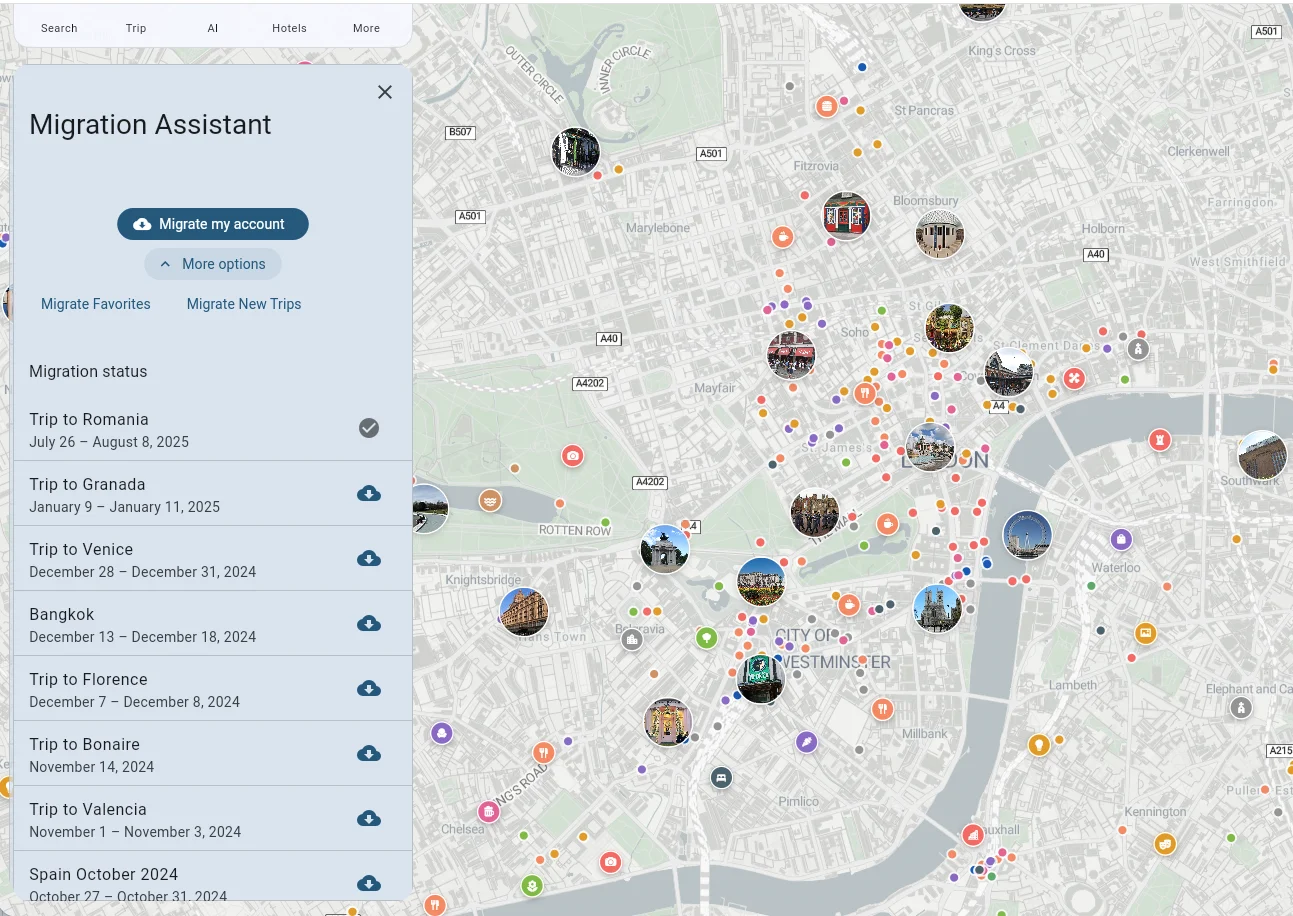
- Choose what to transfer:
- Migrate my account - Transfers everything (settings, favorites, and all trips)
- Migrate Favorites - Transfers only your favorites
- Migrate New Trips - Transfers only trips that haven’t been transferred yet
Selective Transfer
The Migration Assistant allows you to transfer individual trips:
- Open the Migration Assistant
- You’ll see a list of all your trips from the previous version
- Trips with a checkmark have already been transferred
- Tap the download icon next to any trip to transfer it individually
Re-transferring Data
If a trip was already transferred but you want to pull in the latest version of it from your old data, open the Migration Assistant, find the trip, and click the checkmark icon. This will re-migrate the trip and update it with the latest data from the previous version.
Important Notes
Data is copied, not moved. The transfer creates a copy of your data. Your old app continues to work with the original data, and the new app works with the copied data.
No way to go back. Changes made in Tripomatic 26 cannot be transferred back to the previous version.
Re-invite your collaborators. After the transfer, go to your shared trips and invite your travel companions again. They will need to accept the new invitation.